User Interface
Learn about the Fidura user interface, including navigation menus, action buttons, and user settings
This guide explains the key elements of the Fidura user interface to help you navigate the platform effectively.
Company Menu
Add content about the company menu, including how to switch between companies, view company details, etc.
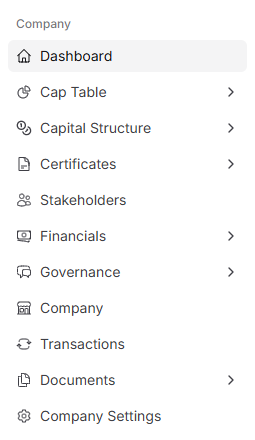
The company menu allows you to:
- Switch between different companies (entities) you manage
- View company details and information
- Access company-specific features and settings
Organisation Menu
Add content about the organisation menu, including organisation-level features, settings, etc.
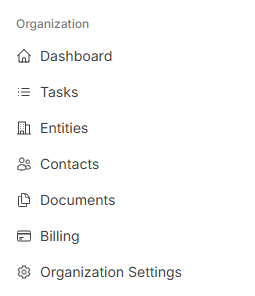
The organisation menu provides access to:
- Organisation-level settings and configuration
- Organisation-wide stakeholders and contacts
- Organisation dashboard and overview
Action Buttons (Top Right)
Add content about action buttons in the top right corner, including what actions are available, how to use them, etc.
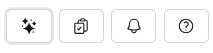
Action buttons in the top right corner provide quick access to:
- Creating new items (entities, stakeholders, shares, etc.)
- Task management
- Notifications
- Search functionality
User Settings
Add content about user settings, including profile management, preferences, account settings, etc.
User settings allow you to:
- Manage your profile and account information
- Configure preferences and notifications
- Update security settings
- Manage API keys and integrations