Company Dashboard
Learn about the entity dashboard and how it provides a central hub for monitoring and managing your company's activity
The Entity Dashboard
The Dashboard provides a central hub for monitoring and managing your organization's activity within Fidura. It displays real-time summaries of entities, tasks, compliance status, and user actions, allowing corporate administrators to quickly assess priorities and address outstanding obligations.
Managed Entities Dashboard
The Managed Entities dashboard displays all companies administered within your organization, offering a clear overview of their key details at a glance.
Each company card shows the entity's name, registration number, and address, accompanied by a status indicator (green, yellow, or red) to reflect compliance or data completeness.
A search bar allows quick filtering by company name, while the toggle to Show as Table switches the view for users who prefer a tabular layout.
At the top right, you can easily add a new managed company manually or use the AI upload feature to import company details in bulk. This interface enables fast navigation, status monitoring, and seamless onboarding of new entities into the Fidura platform.
Share Capital Overview
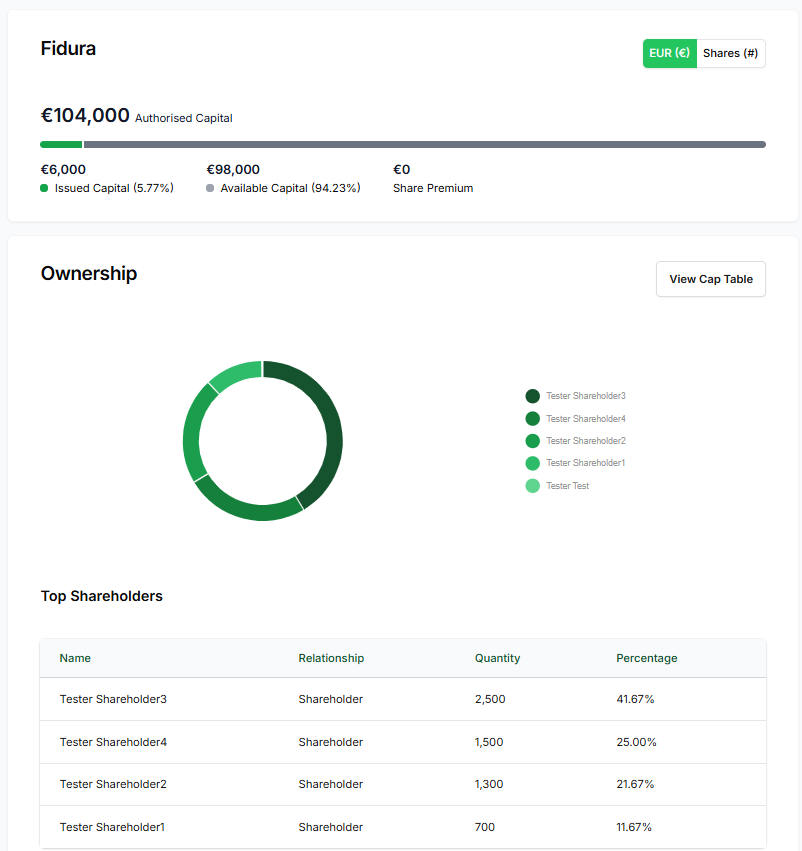
This is the share capital overview for a specific company. It displays the total authorised shares and splits them into issued shares (already allocated to shareholders) and available shares (remaining unissued). The progress bar visualizes this balance, while the toggle buttons switch between monetary and numerical views.
The View Company button links back to the full company profile for deeper details and related actions.
Ownership Dashboard
The Ownership dashboard view provides a visual and tabular breakdown of company equity distribution:
- Donut Chart: Summarizes ownership categories (Founder, Investor, Advisor, Employee, Director, Other) using color-coded segments for quick reference
- Top Shareholders Table: Lists key shareholders with details on their relationship to the company, share quantity, and ownership percentage. The data is ordered by quantity
Cap Table Access: A "View Cap Table" button allows users to open the full capitalization table for detailed analysis.
Activity Panel
This Activity panel displays a chronological log of all recent actions within the company's records. Each entry specifies:
- User performing the action
- Action type (e.g., created Note, created Stakeholder, created Share)
- Affected item (e.g., specific stakeholder names or share numbers)
- Timestamp (e.g., "25 days ago," "1 month ago")
This provides an audit trail of changes for transparency and easy tracking of key events, such as new stakeholders being added or shares issued.